¶ Device Assignments
Assign devices to students, staff, and groups. Manage loaners and unassign devices.
¶ Assigning a Single Device
- Open Assign from the top menu or click New Student Assignment beneath “Hand ’em Out”.
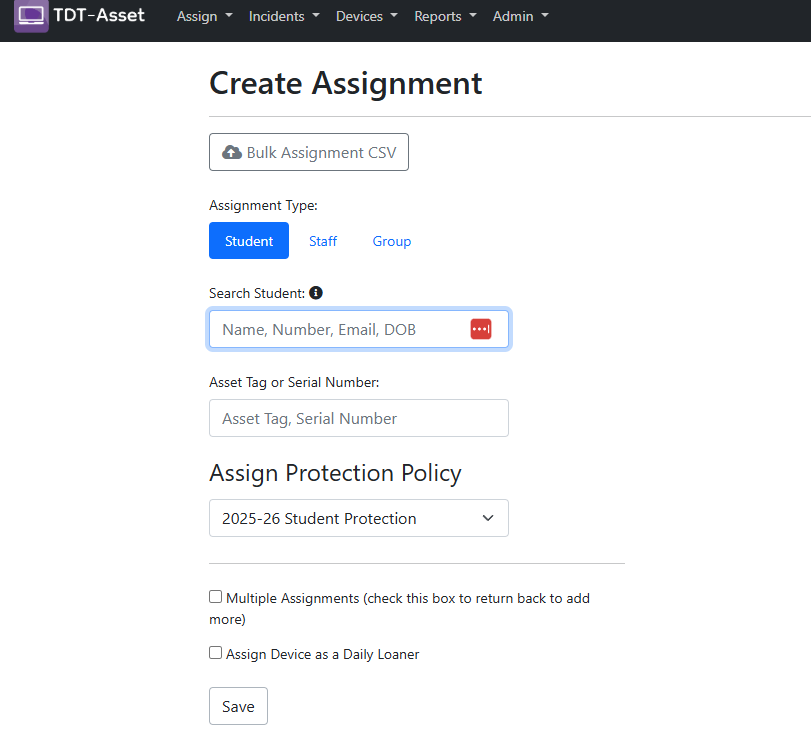
- Select the assignment type.
- Enter the student’s ID, email address, name or birthdate, and the device’s asset tag or serial number.
- For multiple devices, enable “multiple assignment mode” by checking the appropriate box; repeat steps for each device.
- If issuing a daily loaner, select the checkbox to designate it.
- Click Save to assign.
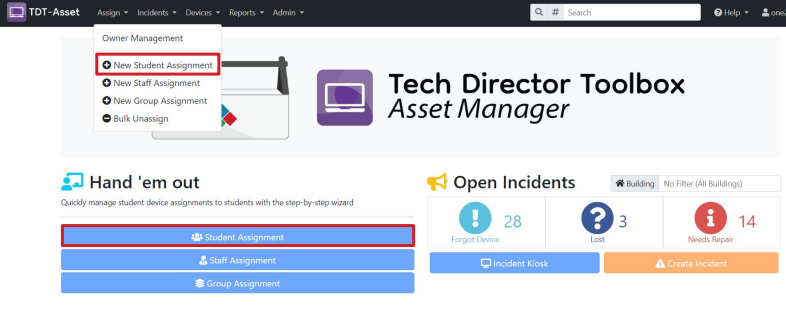
Collected devices are automatically dispersed when assigned.
¶ Bulk Assignments (CSV)
- From New Student Assignment, choose Bulk Assignment CSV.
- Upload a CSV file with the following columns:
- Asset Tag or Serial Number – must already exist in Device Manager.
- Identifier – Student ID, Staff ID, Email, or Group.
- Building (optional) – location for the device.
- Choose the assignment type (student, staff, group) from the dropdown.
- Upload the file to create assignments.
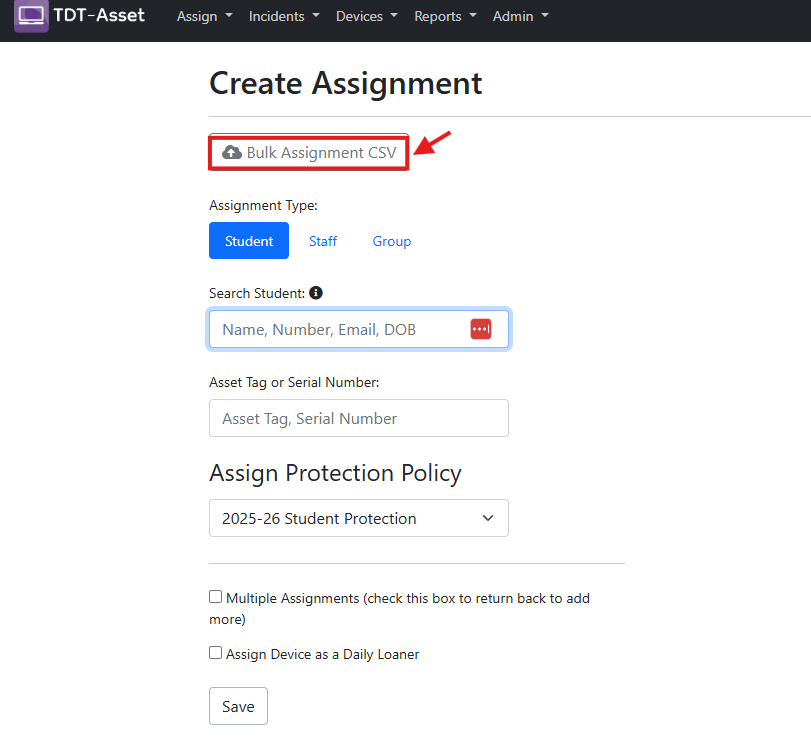
Use CSV bulk assignments for large deployments such as one‑to‑one rollouts.
¶ Group Assignments
Group assignments allow you to assign sets of devices to carts or rooms.
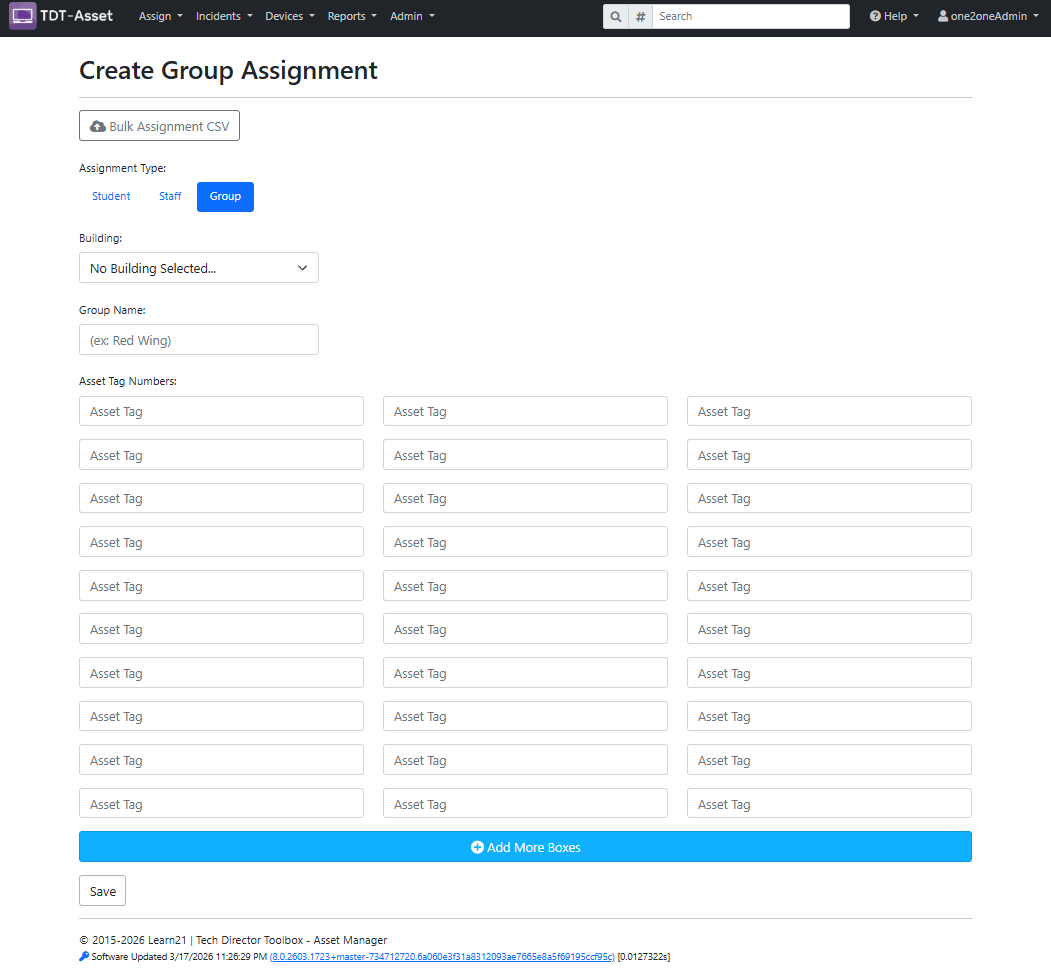
- Go to Assign and click New Group Assignment.
- Select the building.
- Name the group (e.g., Room 24, Library).
- Enter the asset tags for the devices.
- Click Save.
¶ Loaner Swap
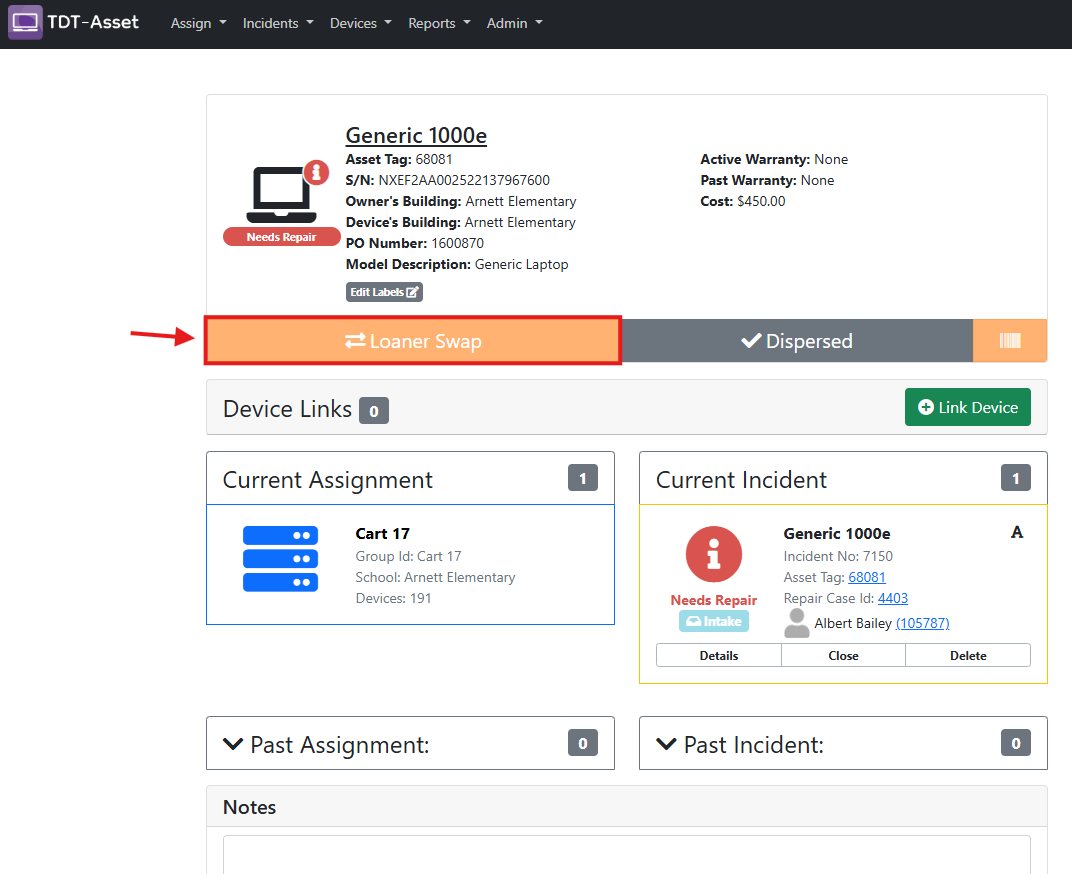
When a student already has a loaner device, use Loaner Swap to replace it:
- Search for the current loaned device.
- Click Loaner Swap.
- Follow the prompts to complete the swap.
¶ Unassigning Devices
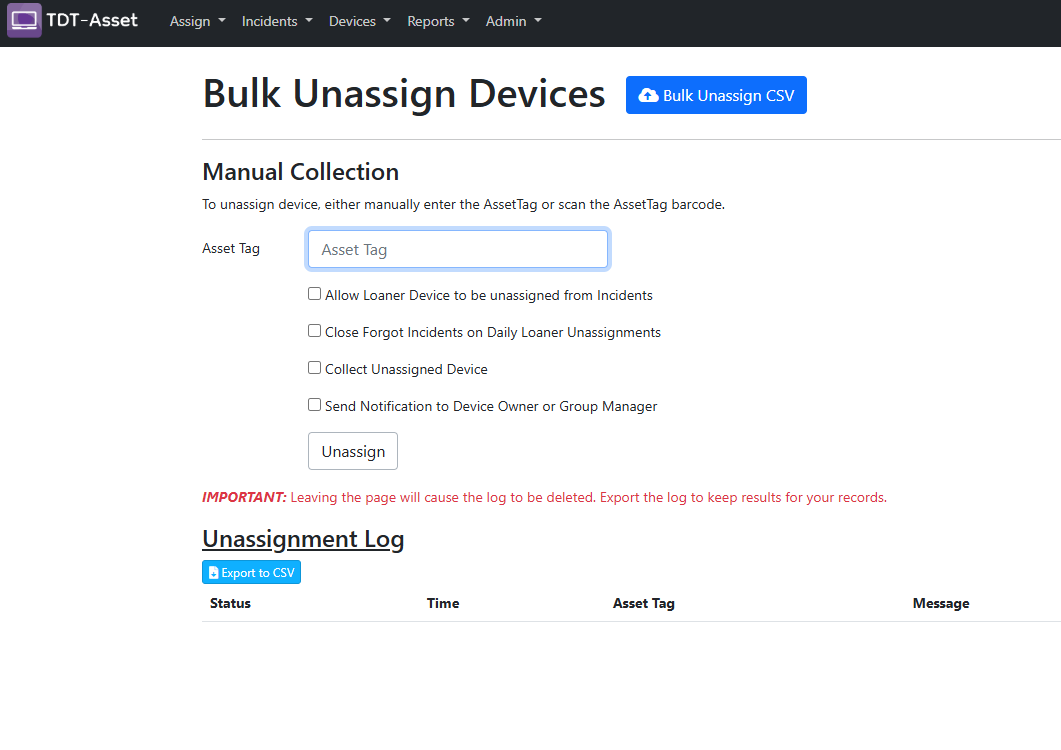
You can unassign devices individually or in bulk.
¶ Single Device
- Enter the device’s asset tag on the unassign screen and click Unassign.
- Repeat for additional devices as needed.
- A log will show the status (success, failed, or no action).
¶ Bulk Unassign (CSV)
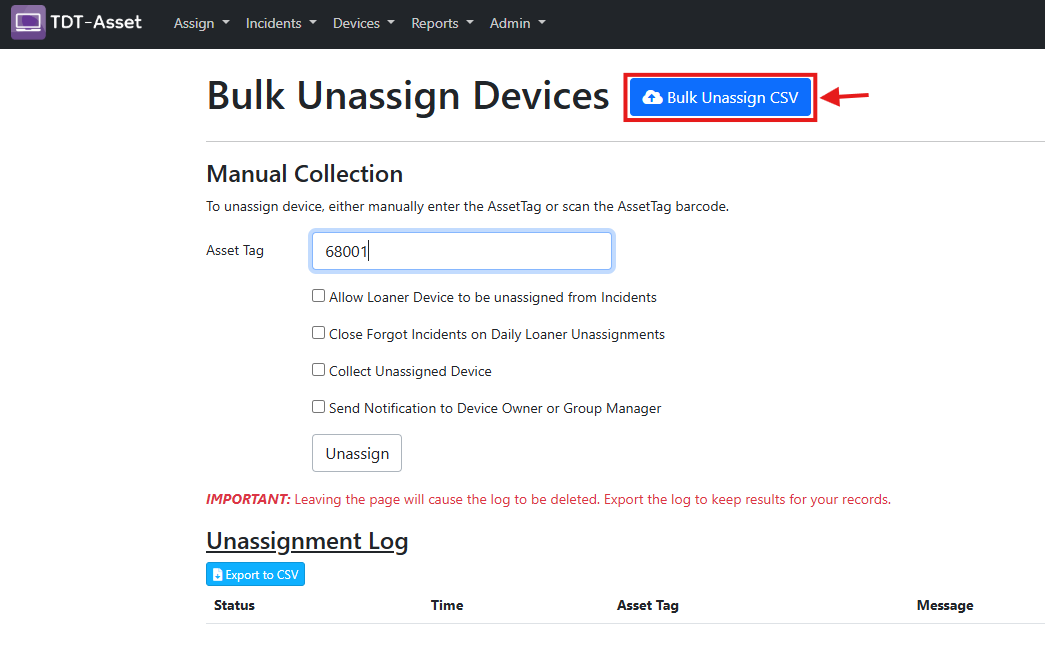
- Go to Assign › Bulk Unassign › Bulk unassign CSV.
- Select the new device status from the dropdown.
- Upload a CSV containing a single column of asset tags.
- Optionally check Close incidents that match assignments? to close related incidents.
- Click Unassign Devices.
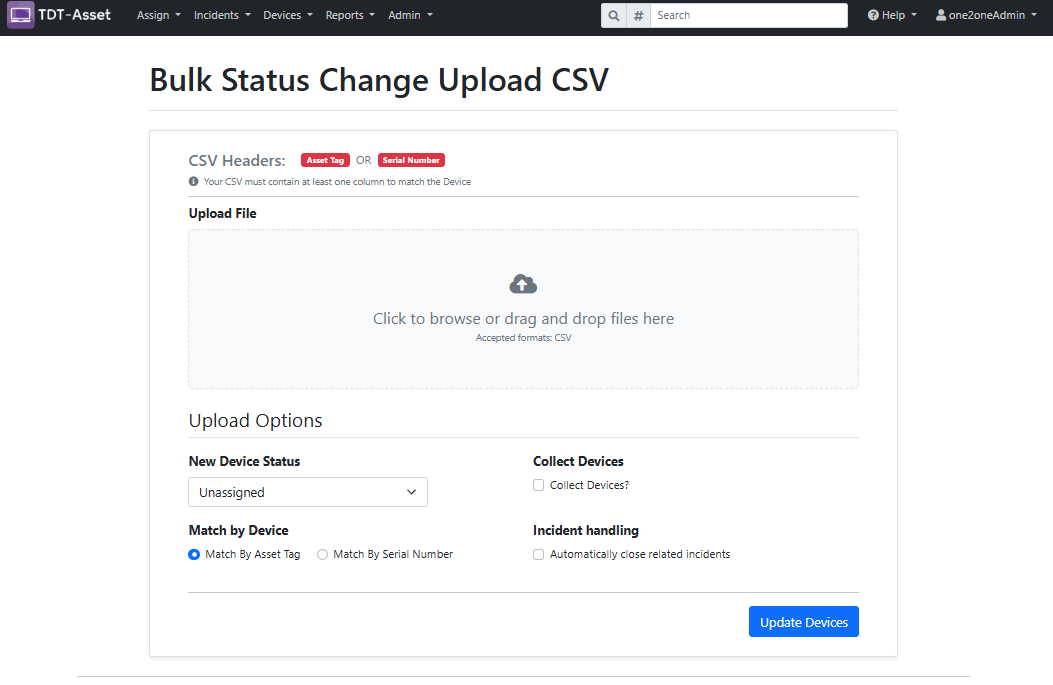
Bulk changes can also adjust loaner or repair status and can decommission devices.